
Row menu and bulk actions
The three dots at the end of a row open the actions of one channel. Select rows and the same actions work on several channels at once.
The row menu
Section titled “The row menu”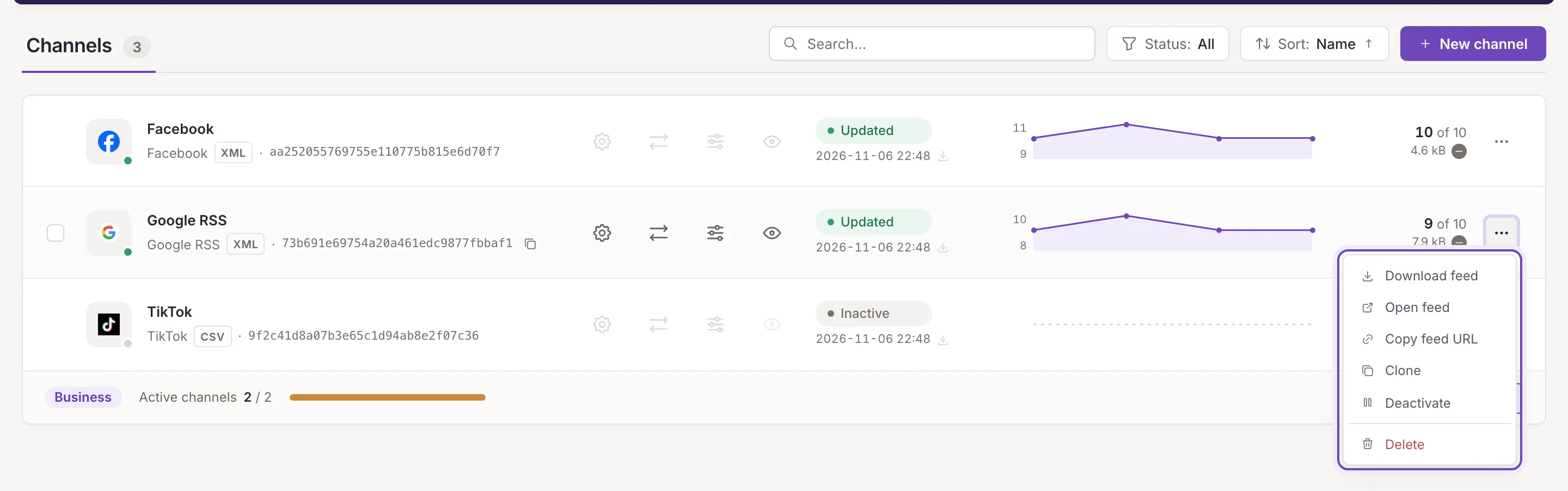
Everyone who can open the list sees:
- Download feed: downloads the feed file.
- Open feed: opens the feed in a new tab.
- Copy feed URL: copies the feed’s URL (Feed URL copied to the clipboard.).
An owner or a collaborator also sees:
- Clone: Clone a channel.
- Deactivate or Activate, depending on the channel.
- Cancel update, only while an update runs or is requested. It stops the update or withdraws the request.
- Delete, in red.
The feed’s URL is explained in Channel settings.
Select several channels
Section titled “Select several channels”A checkbox appears at the start of a row when you point at it (owners and collaborators; a viewer has none). Tick one and a bar appears at the bottom of the window.
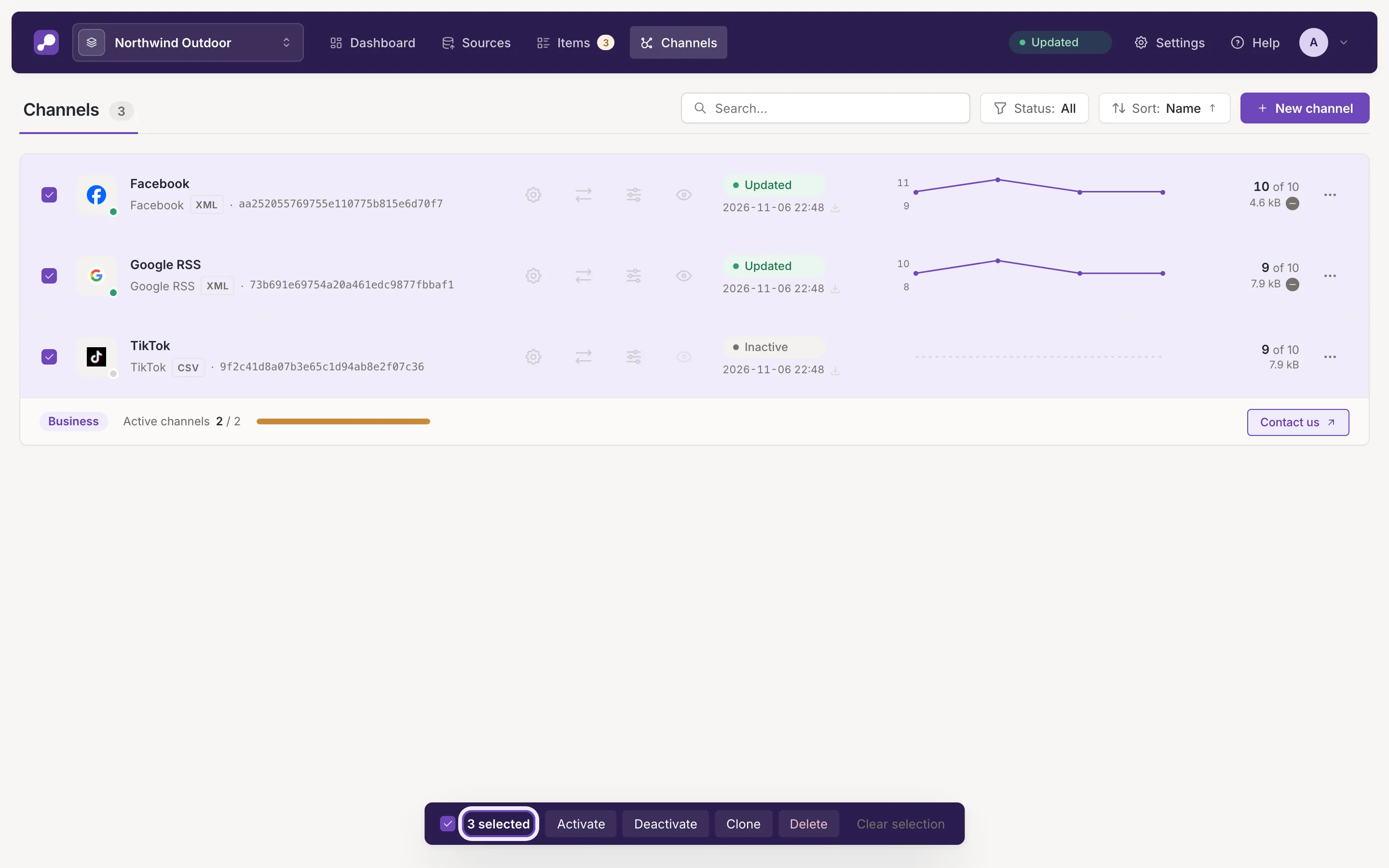
The bar shows how many channels are selected and has Select all channels, which selects every channel the list shows, and Clear selection. Its buttons act on the selection: Activate, Deactivate, Clone and Delete. A new search or filter clears the selection, so a button never reaches a channel you cannot see.
Activate and deactivate
Section titled “Activate and deactivate”An inactive channel is not updated and does not count against your plan’s limit; its URL keeps serving the last feed it generated. Activate and deactivate work from the row menu, from the bar, and with the Active switch in the channel’s settings. Feedink confirms with Channel activated., Channel deactivated. or, for several, the plural of these.
If a channel or the inkspace is being updated, the request can be refused. The message says to try again after the update finishes.
Delete a channel
Section titled “Delete a channel”Delete asks first.
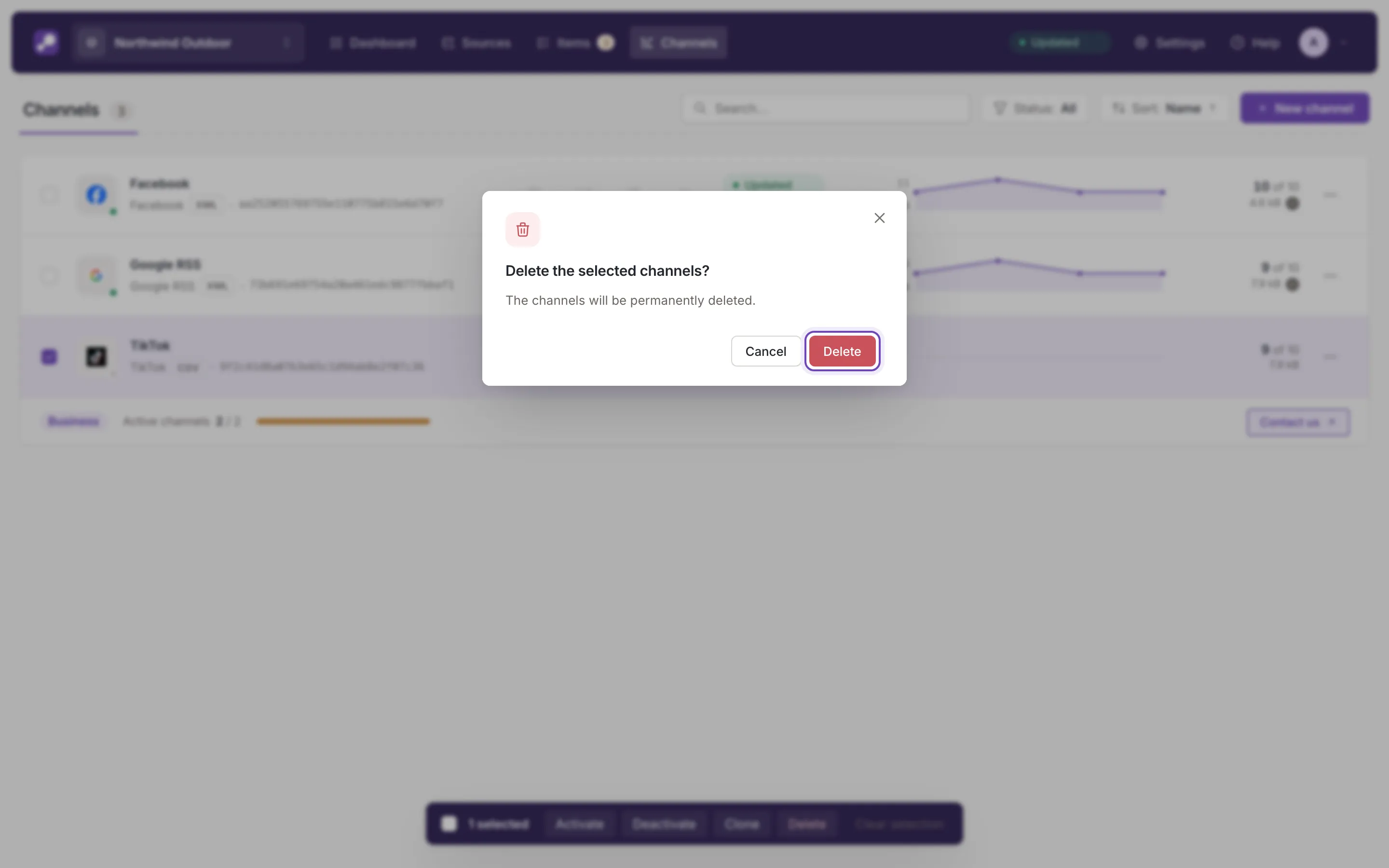
For one channel it reads The channel will be permanently deleted and its feed URL stops working. For several it reads The channels will be permanently deleted. Deleting cannot be undone.
Channel limit
Section titled “Channel limit”Your plan limits how many channels are active. Only active channels count.
- When the limit is reached, a new channel is added inactive. Point at New channel on the list and it says: Channel limit reached: a new channel is added inactive. To activate more channels, contact us.
- Activating channels beyond the limit is refused. The message says how many more you can activate, or asks you to deactivate a channel first.
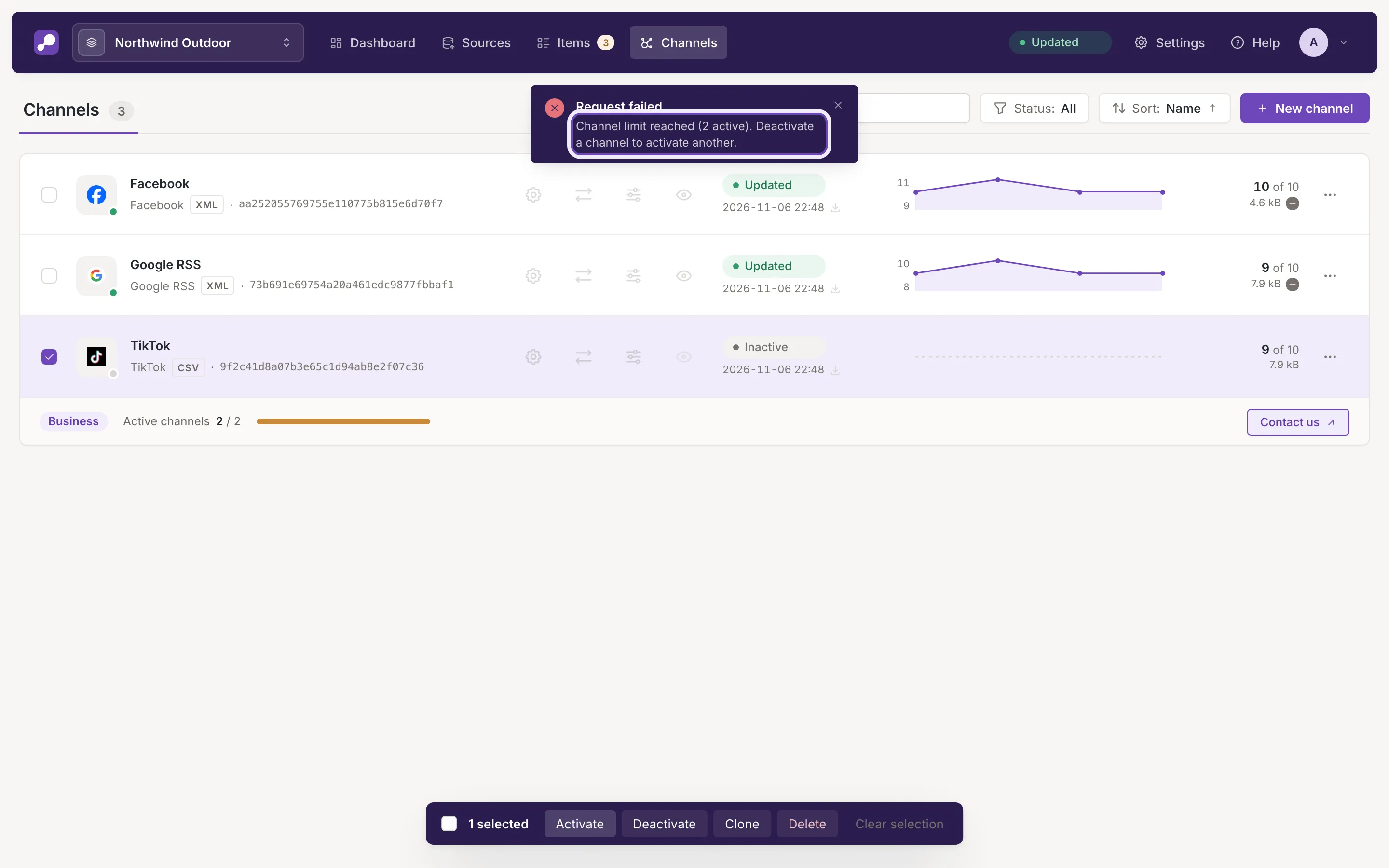
A channel that your plan leaves out reads Over limit (Channel statuses). Contact us in the footer of the list opens a request about your plan.