
Update details
Update details is a panel on the right that lists the steps of one update of an inkspace: what Feedink read, merged and wrote, and where it stopped when something went wrong.
Open the details
Section titled “Open the details”There are three ways in, and all lead to the same panel:
- the status chip in the header: point at it and click Show details (Update status);
- the status chip of an inkspace in your list of inkspaces;
- the dashboard: a click on a column of the update chart, on a row of the update list, or on a channel’s red dot opens the details of that update (What a row of the update list shows, Failed updates on the dashboard).
The panel opens over the screen you are on. It shows the update the chip stands for: the running one while an update runs, otherwise the last finished one. Before the first update has started there is nothing to open; during the first update the panel shows it running. Opened from the dashboard, the panel shows the update you clicked. If the steps cannot be loaded, a message says Could not load the update details. Try again in a moment. and the panel stays closed.
When it ran
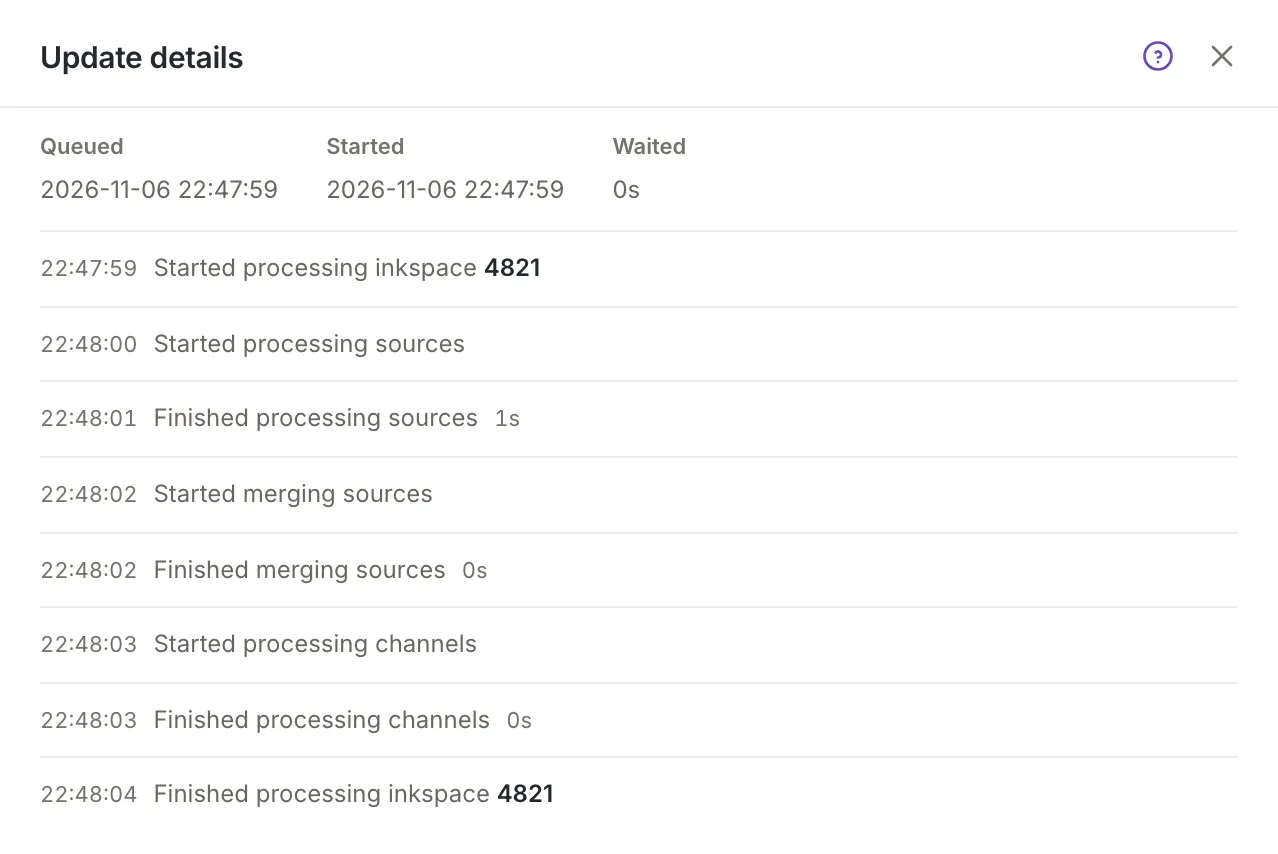
Section titled “When it ran”At the top of the panel, above the steps, three facts say when the update ran: Queued (when the update was requested or scheduled), Started (when Feedink began it) and Waited (how long it waited in the queue between the two). Everyone who can open the panel sees them, not only owners and collaborators. The times are in the inkspace’s time zone and include the seconds. When Feedink has not recorded both times for an update, the three are left out.
For the update of a single source, the panel also shows the file Feedink stored for it, as far as it is known: File format, Compression and Encoding. A fact that is not known yet is left out. This helps when you check why a file was read the way it was (When a source update fails).
Reading the steps
Section titled “Reading the steps”The panel lists the steps in the order they ran, one per line, in plain sentences: starting and finishing the sources, merging them, writing the channels. A step that went wrong is in red. The number of a source or a channel in a line is a link to its settings; following it closes the panel.
Each line starts with the time it was written, as hours, minutes and seconds in the inkspace’s time zone. The line that finishes a step, for example the end of a source, also shows how long that step took, such as 12s or 1m 5s; point at it for Step length. The times have a resolution of one second, so a quick step can read 0s.
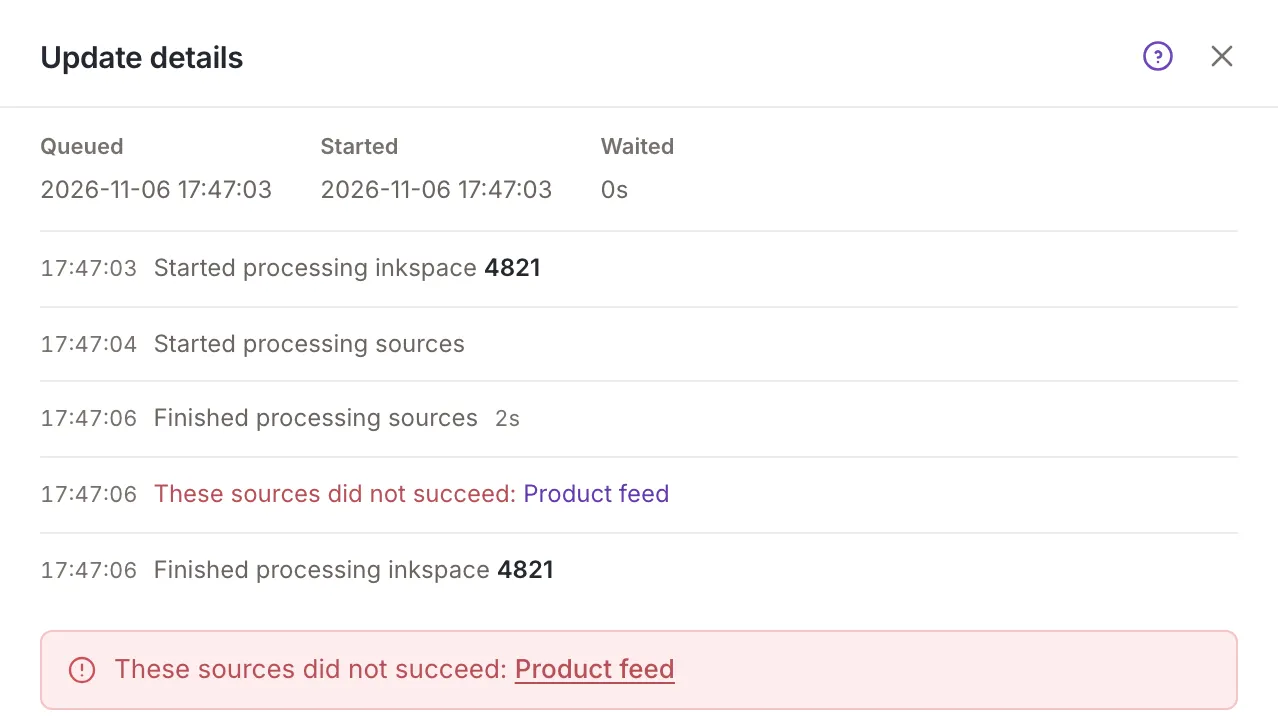
Under the steps, a message sums the update up. Its color follows how serious it is: red for an error, amber for a warning, blue for information. For a failed update it names what failed, and the name of a source is a link to it. When an update left no steps, the panel says There are no logs for this update.
To fix a failed update, see Failed updates on the dashboard and Why a channel update failed.
A running update
Section titled “A running update”While the update runs, its progress shows at the top of the panel: what it is doing, how far it got and a progress bar. It moves by itself while the panel is open.
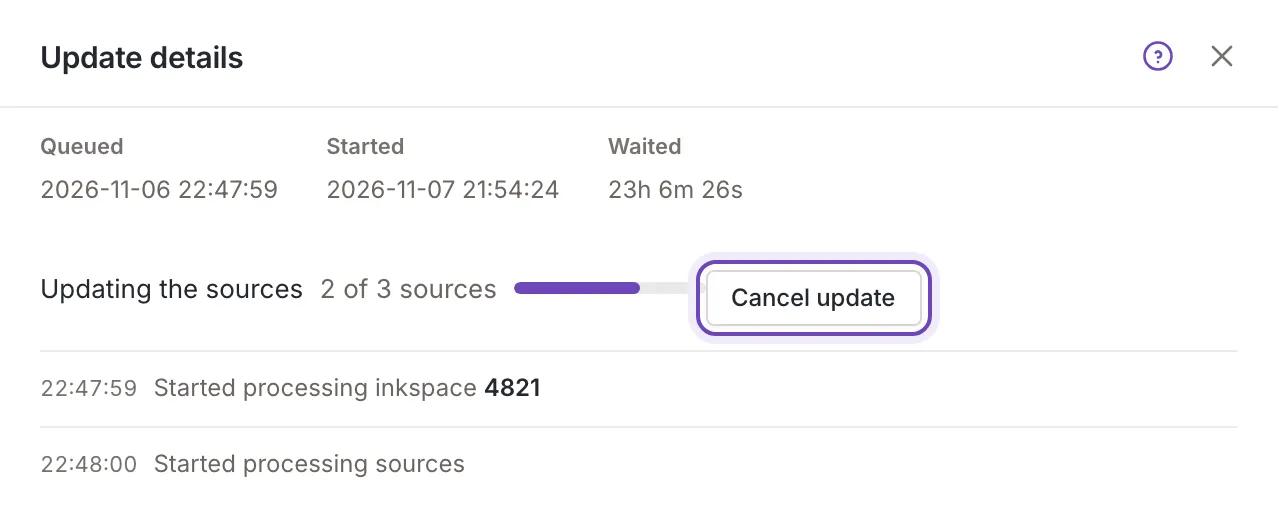
Owners and collaborators also see Cancel update there. It stops the update, and the line then reads Cancelling… A viewer sees the progress without the button.
Copy puts the steps on your clipboard as plain text, one per line, ready to paste into a message to support. Each line begins with its time and a finished step ends with its length in brackets, as in the panel. A message confirms it: Update steps copied to the clipboard. The button is not there when the panel has no steps. OK or the close button closes the panel.