
The mapping tree
The tree is the left half of the mapping screen: the structure of your file, one row per element or attribute, with the field each one fills on the right. A channel’s mapping has the same tree for its feed.
Rows and what they mean
Section titled “Rows and what they mean”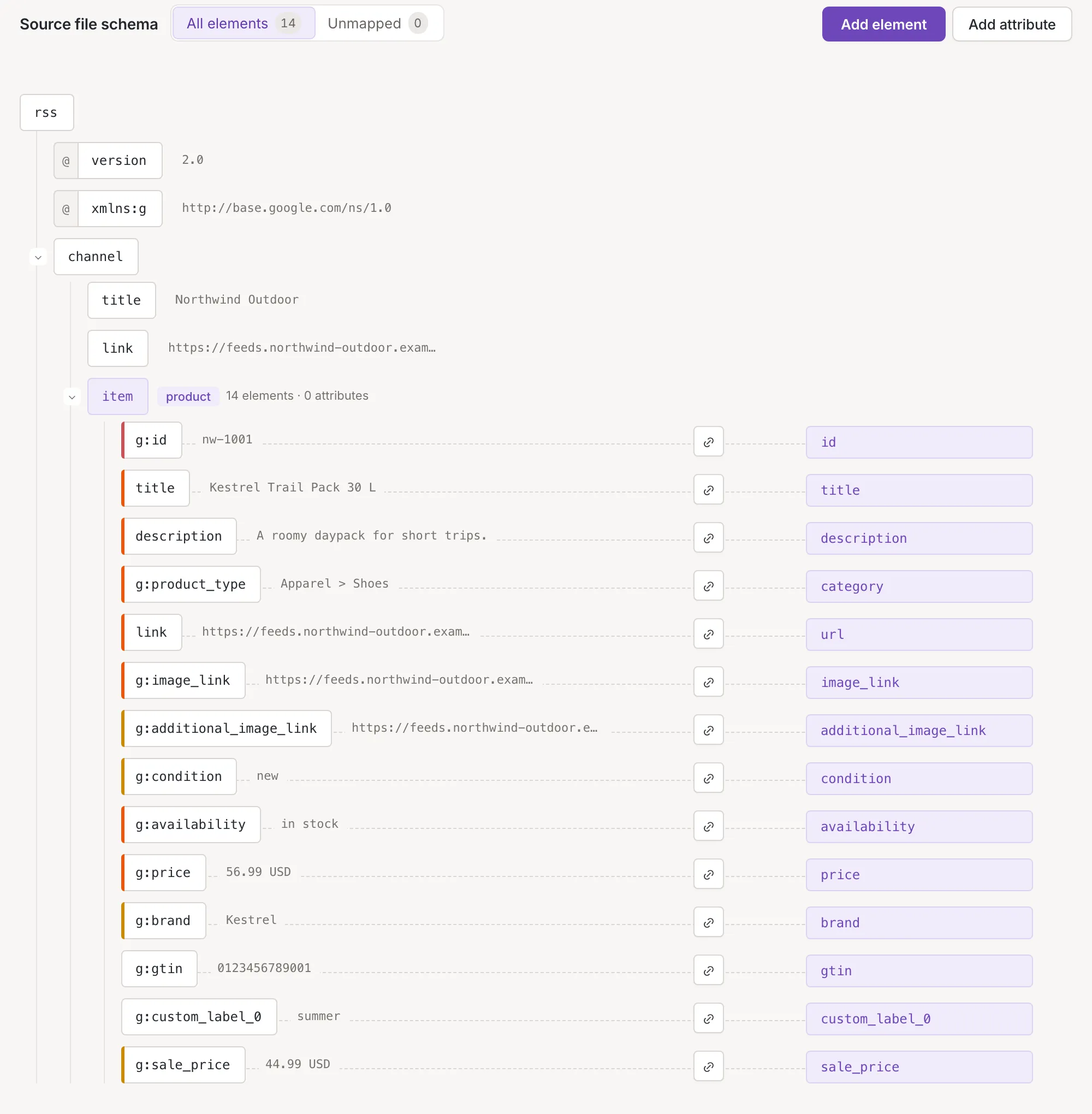
- Elements are the boxes with the name of the element in your file. A branch is indented under the element that contains it.
- Attributes have an “@” before the name and sit under their element.
- The product element is the one that wraps each product. It carries a product tag and counts what it holds, for example “14 elements · 0 attributes”. Only the elements inside it have a field to fill: the rows above it (the root and the feed’s own title and link, for example) are shown for orientation and have no map cell. Element settings of a source says how to mark another element as the product element.
- Variants are rows an element can have besides its own; see Add, move and remove elements.
- The map cell at the right of an element inside the product element shows the field it fills. A free element shows Choose a field…, a suggestion or the name of a field you can keep it as; the button before a filled cell, Remove mapping, clears it. An element with no value of its own, because its data sits in its attributes, shows Data in its attributes and is left out of the counts; map its attributes instead. Map an element to a field covers the cell.
- Row buttons appear when you point at a row: add, move, settings and remove. See Add, move and remove elements and Element settings of a source.
A CSV file or a Google Sheet has no tree: its columns are a flat list (Mapping a CSV or Google Sheet source).
Example values
Section titled “Example values”Beside each name is the first example value Feedink found in a sample of your file, cut at 80 characters. Point at it to see the distinct values of the sample in a box under Example values: the first five, each cut at 100 characters, then a note of how many more there are. When a row has only one distinct value and it is cut, pointing at it shows the whole value.
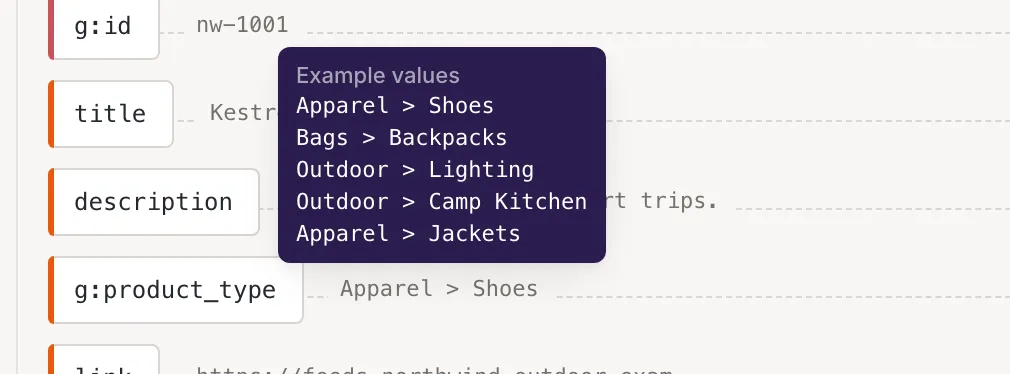
The sample is a part of your file, not all of it; the whole value is read when the source updates.
Requirement marks
Section titled “Requirement marks”On a source, a thin bar on the left edge of a mapped element’s name shows how much the field it fills matters: red for Mandatory, orange for Recommended and yellow for Useful; point at the bar for its name. A field with no requirement, and an element with no field, has no bar. The Summary groups the fields the same way.
Show only unmapped
Section titled “Show only unmapped”The heading of the tree has a switch with two sides: All elements and Unmapped (All columns on a CSV file or a Google Sheet), each with a count. The counts are the places inside the product element that can hold a field: every attribute (for an element with variants, every variant instead) and every element that has no attributes. An element that has attributes counts only when you mapped it. The Unmapped side hides the rows that are mapped and the branches whose places are all mapped; the rows above the product element stay. A count of 0 on Unmapped means every place has a field.
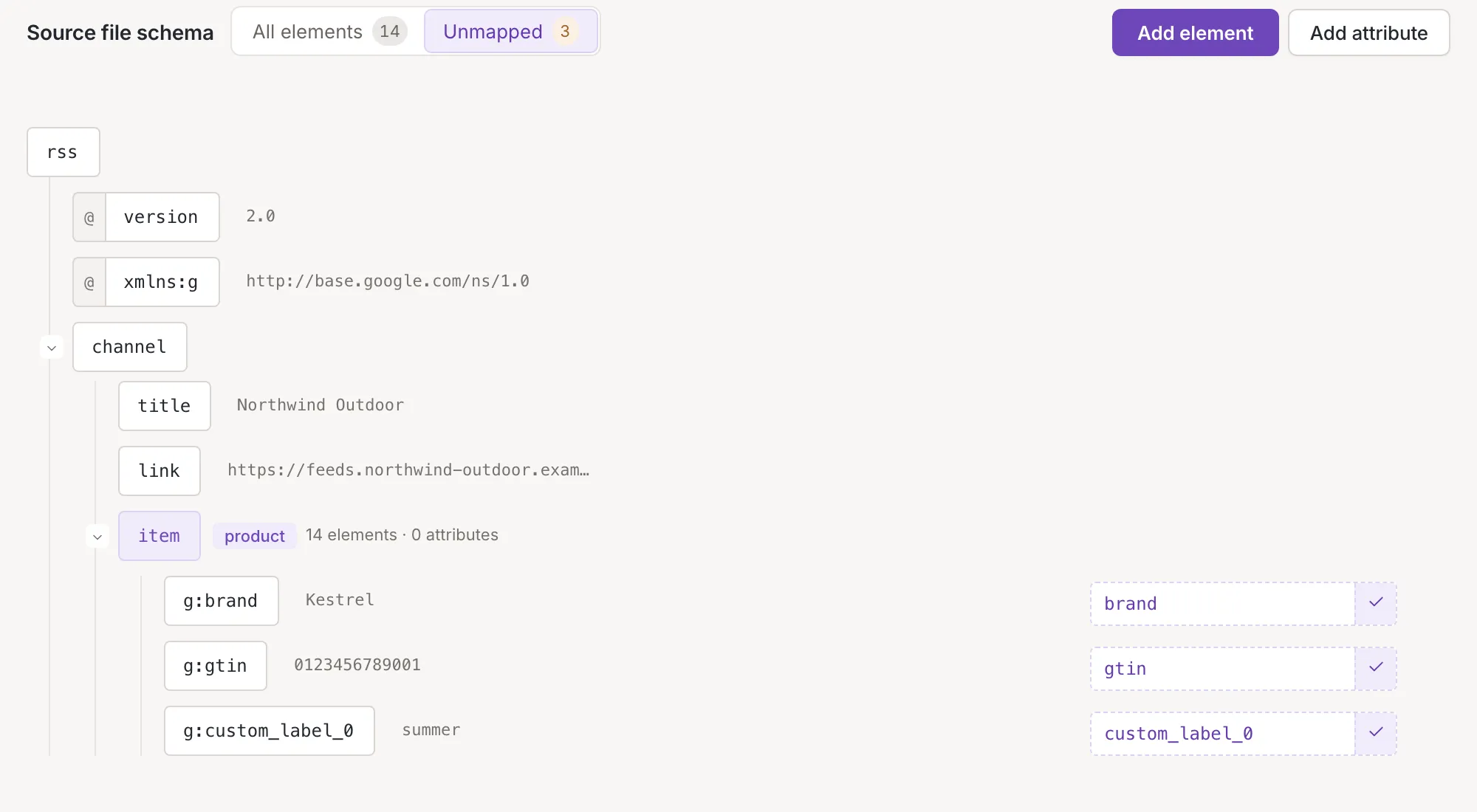
The number under Mapping in the Sources list is the same count of mapped places out of all.
Collapse a branch
Section titled “Collapse a branch”An element that contains others has a small arrow before its name: Collapse folds the branch and Expand opens it. A folded element other than the product element says how many elements it holds directly. Folding changes only what you see, not the mapping.
Alerts above the tree
Section titled “Alerts above the tree”A red notice above the tree says why the mapping cannot be used yet. Each goes away when its cause does.
- The schema is empty: Add at least one element to the schema.
- No product element is marked (XML only). The notice says to open the settings of the element that wraps each item and mark it as the item element; see Element settings of a source.
- The id field is not mapped (a source): see Combine data.
- A row Feedink did not accept: one notice per row, with its name and the reason, such as a name that is not a valid XML name. Fix the name in the row’s settings.

The first and the third notice include a link to Feedink’s help site. Save, undo and leave lists what keeps Save off.
On a channel
Section titled “On a channel”A channel’s mapping (Channel mapping) uses the same tree with these differences:
- The card is titled Feed schema and the product element’s tag says item. The tree is the format of the feed you chose, and its elements and requirement marks come with the format.
- The requirement bar belongs to the element itself, whatever it is mapped to, and is set in the element’s settings (Channel element settings).
- The example beside a row is the value of the field it fills in the first item of your inkspace, or its fixed value; it is empty until the inkspace has items (The channel’s item preview).
- The heading has a button to put the feed’s default schema back, Reset schema to default, and there is no Combine data card.